


Table of Contents
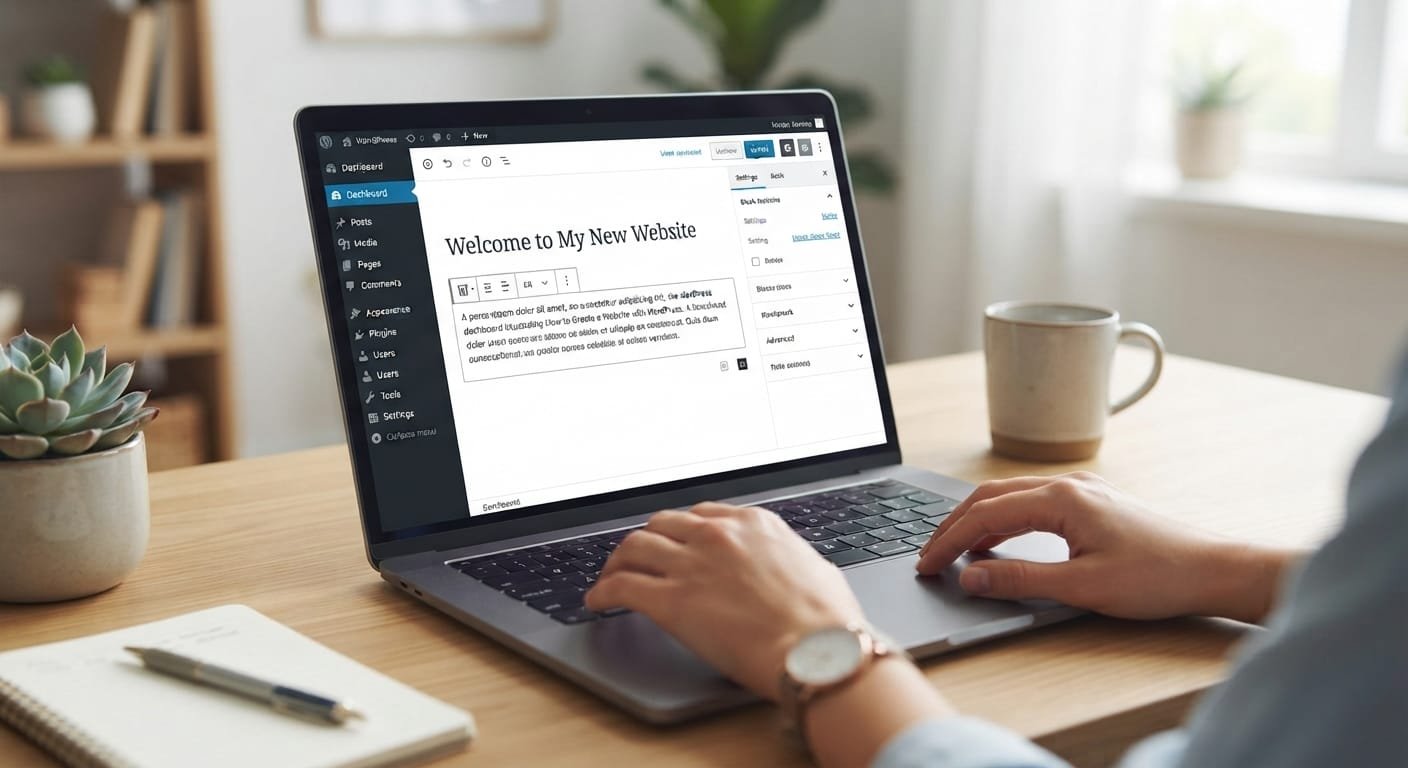
How to Create a Website with WordPress is easier than ever, whether you are launching a personal portfolio, a dynamic business hub, or an online store.
Building a professional online presence no longer requires knowing a single line of code. WordPress powers over forty percent of the entire internet for good reason: it combines unmatched flexibility with user-friendly tools that put you completely in the driver’s seat.
If you have ever felt intimidated by the technical side of web development, this straightforward guide will walk you through everything you need to know to take your digital vision from a blank page to a fully functioning, live website.
The open source publishing platform of choice for millions of websites worldwide—from creators and small businesses to enterprises.
1.Choose a domain name
Choosing the right domain name is the single most important branding decision you will make for your new site. It serves as your digital address, your first impression, and a permanent fixture on your business cards, social media profiles, and marketing materials.
A great domain name needs to balance memorability, clarity, and relevance so visitors instantly understand what your site is about. Here is how to choose one that works:
- Prioritize the
.comextension: While there are hundreds of new domain extensions available today (like.tech,.shop, or.blog),.comremains the gold standard. It is what users instinctively type into their address bars, and it carries the most trust and authority. - Keep it short and memorable: Aim for a domain name that is easy to spell, pronounce, and type. If a potential visitor hears your web address aloud, they should be able to type it into a browser without asking for spelling clarifications. Avoid long, complicated strings of words or unnecessary hyphenations.
- Incorporate your brand name or niche keywords: If you are building a personal portfolio or a distinct brand, focus on a unique, catchy name. If you are launching a niche business or a local service, incorporating a relevant keyword (such as
bakerystudio.comorseattleplumbing.com) can instantly signal your core offering to both users and search engines. - Avoid numbers, hyphens, and double letters: Hyphens and numbers often look like spam and are easily forgotten when shared by word-of-mouth. Similarly, double letters (like
presssteve.com) invite spelling errors where users might accidentally drop a letter. - Check for trademark and social media availability: Before you fall in love with a domain, do a quick trademark check in your region and verify that the exact name (or something very close to it) is available as a handle across major social media platforms like Instagram, X, and Facebook for brand consistency.
2.Select reliable web hosting
Choosing a reliable web host is critical to ensure your WordPress site loads quickly, stays secure, and remains accessible around the clock. Since your hosting foundation dictates everything else, look for providers that offer high uptime guarantees (99.9% or higher), fast server response times, free SSL certificates, and solid customer support.
Top-tier WordPress hosting options cater to different needs and budgets:
- Hostinger (Best Value & Beginner-Friendly): An exceptional choice if you are launching your first site. It combines aggressive, budget-friendly pricing with swift performance, an intuitive custom control panel, and a streamlined setup wizard that gets WordPress installed in minutes.
- SiteGround (Best All-Rounder for Performance & Support): Widely praised for its top-tier customer service and robust built-in security. Running on Google Cloud infrastructure, SiteGround offers proprietary speed-optimization tools and automated updates, making it a favorite for growing business sites. (Note: Be mindful that introductory rates increase upon renewal.)
- WP Engine (Best Enterprise Managed Hosting): If you are running a high-traffic e-commerce store or a demanding professional platform, WP Engine handles all technical maintenance, caching, security patches, and daily backups automatically. It is more expensive, but it delivers unmatched reliability and enterprise-grade scalability.
- Cloudways (Best for Flexibility & Scalability): A unique platform that lets you deploy WordPress on high-performance cloud infrastructure (like DigitalOcean, AWS, or Google Cloud) through a simplified management dashboard. It is ideal if you want advanced speed and resource control without managing a raw server yourself.
3.Install WordPress
Installing WordPress is the crucial milestone where your site officially comes to life. Because WordPress is the industry standard for content management, the vast majority of reliable web technical hosts offer a one-click installer that handles the heavy lifting behind the scenes.
Here is how to complete the installation through your hosting dashboard:
- Log into your hosting account: Access your host’s control panel (such as Hostinger’s hPanel, SiteGround’s Site Tools, or Bluehost’s dashboard).
- Locate the Auto-Installer: Look for a section labeled Website , Auto-Installer , or WordPress Manager . Most top hosts feature a dedicated “Install WordPress” or “Quick Install” button right on the main dashboard home page.
- Configure your basic site details: The installer will prompt you for a few vital pieces of information:
- Domain Name: Select the domain you want to install WordPress on (make sure to choose
https://for security). - Site Title: Enter the name of your blog or brand (you can easily change this later).
- Admin Username & Password: Choose a secure username and a strong, unique password. Never use “admin” as your username.
- Admin Email: Enter your primary email address so you can recover your password and receive site notifications.
- Domain Name: Select the domain you want to install WordPress on (make sure to choose
- Run the installation: Click the Install button. The automated script will set up your database, configure the files, and have your fresh WordPress installation ready in less than a minute.
- Log into your new dashboard: Once the installation finishes, you can access your brand-new WordPress backend by typing your domain name followed by
/wp-admininto your browser address bar (for example,[yourdomain.com/wp-admin](https://yourdomain.com/wp-admin)) and entering the admin credentials you just created.
how to create a website with WordPress opens up endless possibilities for launching your brand, business, or creative project online.
4.Choose and customize a theme
Your WordPress theme controls the entire aesthetic framework, layout, and visual presentation of your website. Choosing a well-coded, lightweight theme ensures your site loads instantly on mobile devices and ranks better in search engines.
Here is how to choose and customize your theme:
- Select a reliable, high-performance theme: Look for options optimized for speed, security, and flexibility. Top choices include Astra (lightweight and packed with starter templates), Blocksy (modern, feature-rich, and block-first), or Kadence (exceptional custom header and layout builders).
- Install your chosen theme: Go to your WordPress dashboard, navigate to Appearance > Themes , click Add New , search for your chosen theme (eg, Astra), click Install , and then click Activate .
- Customize your global branding: Navigate to Appearance > Customize to open the live visual editor. From here, establish your core brand identity:
- Site Identity: Upload your logo, add a custom site title, and write a concise tagline.
- Colors & Typography: Set a cohesive global color palette (usually two to three core brand colors) and select clean, readable fonts for your headings and body text.
- Header & Footer: Build a clean navigation menu, add social media links, and set up your footer copyright information.
- Import a starter template (Optional): If you want to bypass designing pages from scratch, most major themes offer companion plugins (like Astra Starter Templates or Kadence Starter Templates) that let you import professionally pre-built site layouts with a single click, which you can then easily edit with your own text and imagery.
5.Create essential pages
Every professional website needs a core set of foundational pages to establish trust with your visitors, guide them through your content, and keep your operations running smoothly.
Here is how to create your site’s essential pages:
- Go to the page editor: In your WordPress dashboard sidebar, navigate to Pages > Add New to open the block editor.
- Create your Homepage: This is your digital storefront and the first thing most visitors will see. Design it to clearly communicate what you do, who you help, and where users should go next. Include an engaging headline, a brief overview of your offerings, and clear call-to-action (CTA) buttons.
- Create an “About” page: People buy from people, not faceless entities. Use this page to share your background, your mission, or the story behind your brand. Include a professional photo or relevant imagery to make your brand human and relatable.
- Create a “Contact” page: Make it effortless for potential clients, readers, or partners to reach out to you. Install a lightweight form plugin like WPForms or Fluent Forms to build a clean contact form, and supplement it with your business email or social media handles.
- Create a legal “Privacy Policy” page: Essential for online compliance, transparency, and data protection. If you collect user data, run cookies, or use analytics, a privacy policy is a must. WordPress includes a built-in privacy policy generator under Settings > Privacy to help you set up a compliant baseline template.
- Publish and set your static front page: Once your pages are written and published, go to Settings > Reading in your dashboard. Under “Your homepage displays,” select A Static Page , choose your newly created Homepage for the front page, and select your blog or posts page if applicable. Click Save Changes to lock in your navigation structure.
6.Install useful plugins
Plugins extend the core functionality of your WordPress site, handling everything from search engine optimization to robust security. However, it is vital to keep your plugin count lean—installing too many poorly coded plugins can slow down your site and create security vulnerabilities.
Here are the essential plugins every new WordPress site needs:
- Rank Math or Yoast SEO (For Search Engine Optimization): These plugins help you optimize your content for Google and other search engines. They allow you to easily add meta titles, descriptions, XML sitemaps, and keyword analysis right inside the WordPress editor.
- Wordfence Security or Solid Security (For Site Protection): WordPress is a prime target for automated bot attacks. A reliable security plugin acts as a firewall, blocks malicious login attempts, scans your files for malware, and alerts you to suspicious activity.
- LiteSpeed Cache or WP Rocket (For Speed & Performance): Page load speed directly impacts user experience and search rankings. A caching plugin generates static HTML files of your dynamic pages, dramatically reducing server load and making your pages load in milliseconds. (Note: If your host uses LiteSpeed servers, like Hostinger or SiteGround, use the LiteSpeed Cache plugin for seamless integration).
- UpdraftPlus (For Automated Backups): Even if your web host provides backups, having an independent backup system is essential. UpdraftPlus lets you schedule automated backups of your database and site files, storing them safely in cloud storage like Google Drive or Dropbox so you can restore your site instantly if anything ever breaks.
7.Configure your basic settings
Configuring your basic WordPress settings ensures your site is structured correctly, looks professional in search results, and functions smoothly for visitors.
Here is how to set up your foundational configurations:
- Set your Permalinks (URL Structure): By default, WordPress uses messy URLs with dates and numbers (eg,
[yoursite.com/?p=123](https://yoursite.com/?p=123)). Clean, SEO-friendly URLs improve search rankings and user trust. Go to Settings > Permalinks , select Post name ([yoursite.com/sample-post/](https://yoursite.com/sample-post/)), and click Save Changes . - Update your Site Title and Tagline: Go to Settings > General to confirm or refine your site title and enter a concise, descriptive tagline that explains what your site offers.
- Configure Timezone and Date Formats: In the same Settings > General screen, set your local timezone so your blog posts, scheduled updates, and comments reflect the correct local time.
- Manage Discussion Settings: Go to Settings > Discussion to control how comments work on your site. If you want to prevent spam, check the box requiring manual comment approval or use a plugin like Akismet and to filter out automated junk.
- Set Search Engine Visibility: While building your site, you can discourage search engines from indexing it under Settings > Reading by checking “Discourage search engines from indexing this site.” (Crucial reminder: Once your site is polished and ready to launch publicly, uncheck this box so Google can index your pages!)
8.Publish your first content
Launching your first piece of content is the final step that transforms your brand-new website from an empty shell into a living, breathing destination. Whether you are publishing an introductory blog post, a welcoming announcement, or a cornerstone resource, the WordPress block editor makes it seamless to craft and format your work.
Here is how to write, format, and publish your first post:
- Open the post editor: In your WordPress dashboard sidebar, navigate to Posts > Add New to open a clean, distraction-free writing space.
- Craft an engaging title: Write a clear, compelling headline that tells readers exactly what value they will get from reading your piece.
- Build your content using blocks: Click the
+icon to add different content blocks. Use Paragraphs for your body text, Headings (H2 and H3) to break up sections into digestible chunks, and Images or Buttons to add visual interest and clear calls to action. - Optimize your on-page SEO: If you installed an SEO plugin like Rank Math or Yoast, scroll down to the bottom of the editor. Enter a targeted focus keyword, write a concise meta description, and ensure your URL slug is clean and readable.
- Add a featured image and categories: In the right-hand settings panel, assign your post to a relevant category, add a few descriptive tags, and upload a striking Featured Image that will represent the post on your blog archive and social media shares.
- Hit Publish: Review your work one last time, click the blue Publish button at the top right, and confirm. Your first piece of content is now officially live for the world to see!
9.Optimize your website for search engines
Search engine optimization (SEO) is what turns your website from a quiet digital brochure into a steady, organic traffic engine. While installing an SEO plugin provides the technical framework, your ongoing content and structural strategies determine how high you rank on Google.
Here is how to effectively optimize your WordPress website for search engines:
- Conduct targeted keyword research: Before writing any content, find out what terms your target audience is actively typing into search engines. Use free tools like Google Keyword Planner, AnswerThePublic, or Ubersuggest to find low-competition keywords that match your niche.
- Optimize your on-page elements: For every page and post you publish, ensure your primary keyword is strategically placed in your SEO title , your meta description , your URL slug , and your H1 heading . Keep your meta descriptions under 160 characters and write them to attract searchers to click.
- Structure your content with clear headings: Search engines use HTML headings (H2, H3, H4) to understand the hierarchical structure and context of your content. Break up long walls of text with descriptive subheadings that naturally incorporate your secondary keywords.
- Improve site speed and Core Web Vitals: Google heavily rewards fast-loading websites. Compress your images before uploading them (using tools like TinyPNG or plugins like Imagify), leverage a reliable caching plugin, and choose a lightweight theme to keep your loading times under two seconds.
- Build internal and external links: Help search engines crawl your site by linking your newer posts to older, relevant content on your own domain (internal linking). possible, earn Whenever authoritative backlinks by creating high-value resource guides that other websites naturally want to reference.
- Submit your sitemap to Google Search Console: Once your site is live and indexed, create a free account on Google Search Console. Submit your XML sitemap (usually found at
[yourdomain.com/sitemap_index.xml](https://yourdomain.com/sitemap_index.xml)) so Google can crawl, index, and monitor your site health much faster.
10.Launch and maintain your website
Launching your website is an exciting milestone, but building the site is only half the battle. Long-term success requires consistent maintenance, security monitoring, and regular updates to keep your digital storefront running at peak performance.
Here is how to successfully launch and maintain your WordPress website for the long haul:
- Perform a final pre-launch audit: Before opening the floodgates, test every aspect of your site. Click all your navigation links, fill out your contact form to ensure test emails arrive in your inbox, check how your layout looks on mobile phones and tablets, and verify that your SSL certificate (
https://) is active. - Remove search engine restrictions: Go to Settings > Reading in your WordPress dashboard and ensure that the box next to “Discourage search engines from indexing this site” is unchecked . This gives Google and other search engines the green light to crawl and index your pages.
- Establish a routine update schedule: WordPress core, plugins, and themes release frequent updates for security patches, bug fixes, and new features. Log in at least once a week to update everything. Pro tip: Always run a fresh backup before performing major updates so you can easily roll back if anything conflicts.
- Monitor site health and performance: Keep an eye on your Google Search Console account to track organic traffic, catch indexing errors, and monitor keyword rankings. Use tools like GTmetrix or Google PageSpeed Insights periodically to ensure your loading speeds remain lightning-fast.
- Protect against security threats: Cybersecurity is an ongoing responsibility. Ensure your security plugin is actively scanning for malware, keep your admin login credentials strong (and enable two-factor authentication if available), and never download null or pirated themes and plugins, which are the leading cause of WordPress hacks.
- Consistently publish fresh content: Search engines and users alike favor active, living websites. Commit to a regular publishing schedule—whether it is weekly blog posts, updated product listings, or fresh portfolio projects—to signal to Google that your site is vibrant and relevant.
Conclusion
Building a professional WordPress website from scratch might feel like a major undertaking when you are staring at a blank screen, but by taking it one step at a time, you have everything you need to bring your digital vision to life. From choosing the right domain and locking down reliable hosting to configuring your foundational settings and publishing your very first piece of content, you are now equipped with a powerful, flexible platform that can grow right alongside your goals. The secret to long-term success is consistency—keep your site updated, monitor your performance, and keep putting out great content. Your website is officially live, so take a step back, celebrate the milestone, and get ready for what comes next!