Google Analytics 4 (GA4) gives you valuable information about how people use your website. You can see users, sessions, page views, engagement, traffic sources, and the performance of individual pages.
However, understanding all this data can be difficult, especially if you are new to Google Analytics.
This is where ChatGPT can help.
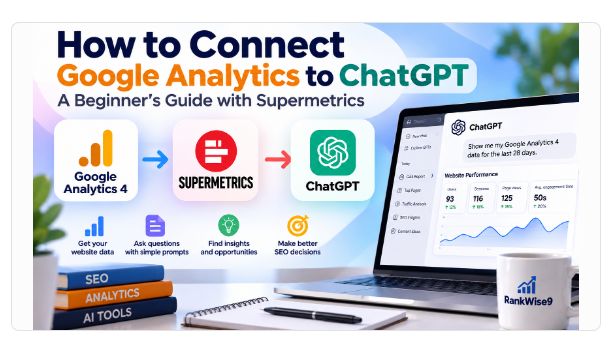
By learning how to connect Google Analytics to ChatGPT, you can ask questions about your website data using simple, natural-language prompts instead of manually searching through multiple Analytics reports.
In this guide, I’ll show you how to connect Google Analytics 4 to ChatGPT using Supermetrics, how to verify the connection, and how to use ChatGPT to analyze your website data.
I’ll also use RankWise9 as a real-world example so you can see what this process looks like in practice.
Table of Contents
1. Why Connect Google Analytics to ChatGPT?
Google Analytics contains a lot of useful information, but raw numbers don’t always tell you what you should do next.
For example, seeing:
- 93 users
- 116 sessions
- 125 page views
is useful, but you may still ask:
What does this mean?
With ChatGPT connected to your Analytics data, you can ask questions such as:
- Which pages get the most visitors?
- Which pages should I improve?
- Which content has low engagement?
- Where should I add internal links?
- What should I focus on next?
- What are the main traffic trends?
Instead of simply looking at numbers, you can use ChatGPT to help turn your analytics data into actionable insights.
2. What You Need Before Getting Started
Before you connect Google Analytics to ChatGPT, you need a few things.
1. A Google Analytics 4 property
Your website must already be connected to Google Analytics 4.
For this tutorial, we’ll use RankWise9 as an example.
2. A ChatGPT account
You’ll need access to ChatGPT and the integrations or apps available in your account.
3. Supermetrics

For this tutorial, we’ll use Supermetrics as the connection between Google Analytics 4 and ChatGPT.
The basic workflow is:
Google Analytics 4 → Supermetrics → ChatGPT
This approach is much simpler for beginners than building your own Google Analytics MCP connection from scratch.
3. Step 1: Check Your Google Analytics 4 Property
Before connecting anything to ChatGPT, make sure your GA4 property is working correctly.
Open Google Analytics and go to:
Admin → Property → Data streams
Select your website’s web stream.
You should see information such as:
- Website URL
- Stream name
- Stream ID
- Measurement ID
You can also find your Property ID under your property details.
RankWise9 example
For our RankWise9 setup, the GA4 configuration was:
| GA4 information | RankWise9 |
|---|---|
| Website | https://rankwise9.com |
| Property ID | 553505931 |
| Stream name | rankwise9.com |
| Stream ID | 15749900996 |
| Measurement ID | G-NGHD46ZM77 |
You don’t need to memorize these numbers. The important thing is to confirm that your website is connected to the correct GA4 property.
4. Step 2: Open ChatGPT Apps
Once your GA4 property is ready, open ChatGPT.
Go to:
Settings → Apps
The available apps can vary depending on your ChatGPT account and region.
Search for:
Supermetrics
Look for Supermetrics Marketing Agent.
If it is available, open it and follow the connection instructions.
5. Step 3: Connect Supermetrics
After opening Supermetrics, connect the Google account that has access to your Google Analytics property.
For example, during our RankWise9 setup, the Google account connected to Supermetrics had access to the RankWise9 GA4 property.
When Google asks you to authorize access, carefully review the permissions and approve the connection if they are appropriate.
Important
You should not share:
- Your Google password
- Private API keys
- OAuth secrets
- Google Cloud private keys
- Banking information
Only authorize the access requested through the official connection process.
6. Step 4: Connect Google Analytics 4
Once Supermetrics is connected to ChatGPT, select Google Analytics 4 as the data source if prompted.
Supermetrics should then be able to retrieve the Google Analytics properties available to the connected Google account.
At this point, don’t assume that the connection worked just because your Google account is connected.
You should verify that your actual GA4 property is available.
For RankWise9, the property we wanted to retrieve was:
rankwise9.com
with Property ID:
553505931
7. Step 5: Verify the GA4 Connection
This is an important step.
Ask Supermetrics to show your available Google Analytics properties.
For example:
Use Supermetrics to show my Google Analytics 4 properties.
If the connection is successful, you should see your available GA4 property or properties.
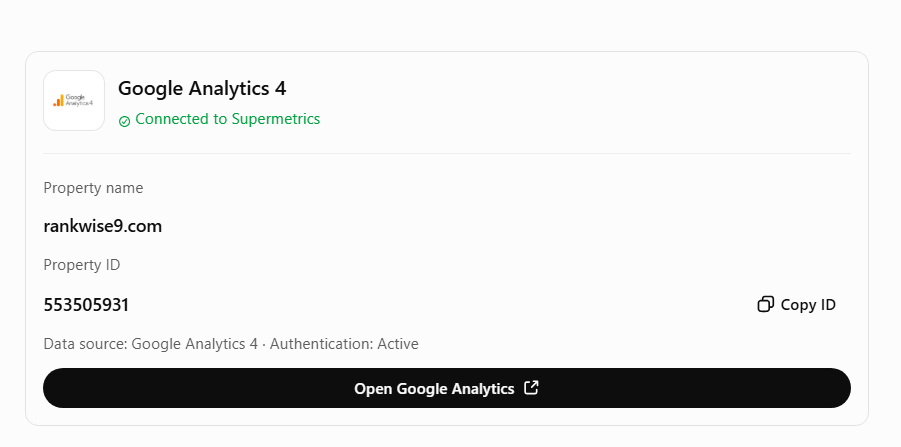
In our RankWise9 test, Supermetrics successfully retrieved the RankWise9 property.
The resulting report identified:
Property: rankwise9.com
This confirmed that the connection was working.
8. Step 6: Run Your First Google Analytics Report in ChatGPT
Once your connection is verified, you can start asking questions about your website.
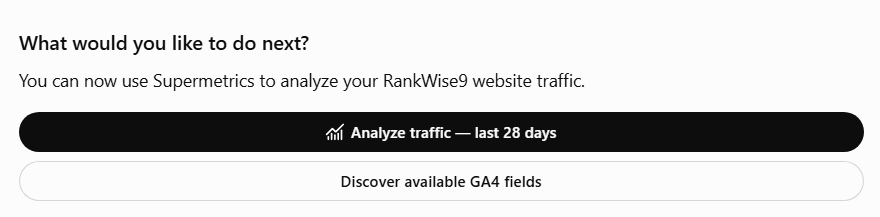
A useful first prompt is:
Use Google Analytics 4 and show me the top 20 pages on rankwise9.com by users for the last 28 days, including users, sessions, page views, and average engagement time.
This type of prompt is useful because it asks for specific metrics and a specific time period.
Instead of simply asking:
“How is my website doing?”
you can ask a much more precise question.
9. Useful ChatGPT Prompts for Google Analytics
One of the biggest advantages of connecting Google Analytics to ChatGPT is that you can ask questions in natural language.
Here are some prompts you can reuse.
1. Find your top pages
Show me the top 20 pages on my website by users during the last 28 days. Include users, sessions, page views, and average engagement time.
2. Find pages that need improvement
Which pages have significant traffic but low engagement? Explain what I should improve on each page.
3. Analyze content performance
Analyze my top-performing pages and identify what types of content attract the most users.
4. Find internal linking opportunities
Based on my most visited pages, suggest internal linking opportunities between related articles.
5. Analyze traffic sources
Show me my main traffic sources for the last 28 days and explain which channels are performing best.
6. Find content opportunities
Which pages should I improve first based on traffic and engagement? Rank them by priority.
7. Get SEO recommendations
Based on my Google Analytics data, give me five practical SEO recommendations for my website.
8. Analyze visitor behavior
Analyze sessions per user and page views per session and explain what these metrics suggest about visitor behavior.
Real-World Example: RankWise9
Now let’s look at what happened when we connected RankWise9 to Google Analytics through Supermetrics.
For the last 28 days, the retrieved GA4 report showed:
| Metric | Result |
|---|---|
| Total users | 93 |
| Active users | 93 |
| Sessions | 116 |
| Page views | 125 |
| Sessions per user | 1.25 |
| Views per session | 1.08 |
| Views per user | 1.34 |
These numbers give us a useful starting point.
But the real value comes from interpreting them.
10. What Do These Numbers Mean?
93 Users
RankWise9 received 93 users during the selected 28-day period.
This tells us that the website is already attracting visitors.
The next question is:
Which pages are attracting those visitors?
That’s why the next report should focus on page-level performance.
116 Sessions
RankWise9 recorded 116 sessions.
The sessions-per-user figure was approximately 1.25.
This means visitors generated more than one session on average during the selected period.
However, the number alone doesn’t tell us whether visitors are returning because they found useful content.
We need additional metrics and reports to understand that behavior.
125 Page Views
RankWise9 recorded 125 page views.
The important observation is that page views were only slightly higher than sessions.
That leads us to another useful metric.
1.08 Views per Session
RankWise9 had approximately 1.08 page views per session.
This suggests that many visitors viewed only one page during their session.
For a content website like RankWise9, this represents an important opportunity.
The goal should not simply be to get visitors to one article.
We want visitors to discover:
- Related SEO guides
- SEO tools
- AI tools
- Website-building tutorials
- Reviews
- The RankWise9 SEO Analyzer
11. How to Improve Visitor Navigation
Based on the RankWise9 example, several improvements make sense.
1. Add More Internal Links
When an article discusses keyword research, link to related articles about:
- SEO tools
- Keyword research tools
- On-page SEO
- Google Analytics
- SEO analysis
Internal links help visitors discover additional content.
2. Add Related Articles
At the end of each article, add a section such as:
You May Also Like
Then recommend two to four closely related articles.
3. Add Clear Calls to Action
Don’t leave visitors at the end of an article without a next step.
For example:
Want to check your website’s SEO? Try the RankWise9 SEO Analyzer.
The CTA should be relevant to the content the visitor just read.
4. Use Comparison Tables
Comparison tables can help visitors understand different tools quickly.
For example:
| Tool | Best For | Difficulty |
|---|---|---|
| Semrush | SEO research | Beginner–Advanced |
| Ahrefs | SEO analysis | Intermediate |
| RankWise9 Analyzer | Website SEO checks | Beginner |
The exact tools and claims should always be kept accurate and up to date.
12. Google Analytics + ChatGPT for SEO
Connecting Google Analytics to ChatGPT can be particularly useful when you’re working on SEO.
However, it’s important to understand the difference between analytics data and search data.
Google Analytics tells you what visitors do on your website.
Google Search Console tells you more about how your website appears in Google Search.
For example:
GA4 can help answer:
Which pages receive visitors?
Search Console can help answer:
Which search queries generate impressions and clicks?
Using both sources gives you a more complete picture of your website’s performance.
13. How to Combine GA4 and Search Console Insights
For example, suppose an article has:
- High Google Search impressions
- Low clicks
- Some GA4 traffic
- Low engagement
You could ask ChatGPT to help identify possible improvements.
A useful workflow is:
Search Console → Identify search opportunities
↓
GA4 → Analyze visitor behavior
↓
ChatGPT → Combine the findings
↓
RankWise9 → Improve the content
This creates a practical SEO workflow instead of looking at isolated metrics.
What Can You Ask ChatGPT After Connecting GA4?
Once your connection works, you can progressively make your questions more sophisticated.
For example:
Identify my five fastest-growing pages over the last 28 days.
Or:
Compare my top landing pages and identify which ones have the strongest engagement.
Or:
Find pages that receive traffic but have low page depth, then suggest internal linking improvements.
You can also ask ChatGPT to organize your findings into a prioritized action plan.
For example:
Analyze my GA4 data and create a prioritized SEO action plan with high, medium, and low priority tasks.
14. Troubleshooting Common Problems
1. Google Analytics Does Not Appear
First check that the Google account connected to Supermetrics has access to the GA4 property.
If you have multiple Google accounts, make sure you’re using the account with the correct Analytics permissions.
2. The Wrong Property Appears
If multiple GA4 properties are available, explicitly tell ChatGPT which website or property you want to analyze.
For example:
Analyze the GA4 property for rankwise9.com.
3. No Data Is Returned
Check:
- The selected date range
- Whether GA4 is receiving data
- Whether the connected account has permission to access the property
- Whether the correct GA4 property is selected
4. Don’t Assume the Connection Worked
One of the most important lessons from our setup is:
A connected Google account does not automatically prove that the correct GA4 property is available.
Always verify the property before analyzing the data.
5. Is Google Cloud Required?
There are more advanced ways to connect Google Analytics to ChatGPT using MCP and Google Cloud.
However, that setup can require additional configuration, including Google Cloud projects and APIs.
For beginners, a managed integration such as Supermetrics can be easier because much of the technical infrastructure is handled for you.
For this tutorial, we’re focusing on the simpler workflow:
Google Analytics 4 → Supermetrics → ChatGPT
This is the approach we successfully used to retrieve RankWise9’s GA4 data.
15. Benefits of Connecting Google Analytics to ChatGPT
Here are some of the biggest benefits for website owners and beginners.
Easier data analysis
You can ask questions in normal language.
Faster reporting
Instead of manually checking multiple reports, you can request specific information directly.
Better content decisions
Analytics data can help you identify which pages deserve more attention.
More practical SEO workflows
You can combine traffic information with content and SEO analysis.
Better understanding of GA4
ChatGPT can help explain unfamiliar metrics and patterns.
Important Limitations
ChatGPT should not replace your analytics platform.
GA4 remains the source of your website analytics data.
ChatGPT is useful for:
- Asking questions
- Summarizing data
- Finding patterns
- Generating recommendations
- Creating action plans
But you should still verify important conclusions against the original Google Analytics reports.
Also remember that analytics data is not a complete representation of your SEO performance.
For SEO, consider combining:
- Google Analytics 4
- Google Search Console
- SEO tools
- Your own content analysis
16. Frequently Asked Questions
Can I connect Google Analytics to ChatGPT?
Yes. Depending on the integrations available in your ChatGPT account, you can connect Google Analytics data through a compatible integration such as Supermetrics.
Do I need Google Analytics 4?
For this tutorial, yes. The workflow is based on a GA4 property.
Do I need Google Cloud?
Not necessarily for the Supermetrics workflow described in this guide. A direct MCP implementation can involve Google Cloud, but the managed integration approach can be simpler for beginners.
Can ChatGPT analyze my GA4 traffic?
Yes, when a compatible integration has access to your GA4 property and retrieves the relevant data.
What should I ask ChatGPT first?
Start with a simple report such as:
Show me my top 20 pages by users during the last 28 days.
Then progressively ask more specific questions about engagement, traffic sources, content performance, and opportunities.
Is connecting Google Analytics to ChatGPT useful for SEO?
Yes, especially for analyzing content performance and visitor behavior. However, GA4 should be combined with Google Search Console and other SEO data for a complete SEO analysis.
Conclusion
Learning how to connect Google Analytics to ChatGPT can make website analytics easier to understand, especially if you’re a beginner.
With the workflow:
Google Analytics 4 → Supermetrics → ChatGPT
you can retrieve your website data and ask questions using natural language.
Our RankWise9 example showed how useful this can be. After connecting GA4 through Supermetrics, we retrieved 93 users, 116 sessions, and 125 page views for the last 28 days.
More importantly, the data revealed an opportunity to improve the visitor journey because RankWise9 was averaging approximately 1.08 page views per session.
That insight can lead to practical actions such as stronger internal linking, related-article recommendations, better calls to action, and improved navigation toward useful tools such as the RankWise9 SEO Analyzer.
The best approach is not simply to collect more analytics data.
Use the data to make better decisions.