
Introduction: Why Image Optimization Matters in WordPress
Images are an essential part of modern WordPress websites, but large and unoptimized files can slow down page loading and create a poor user experience. High-resolution images often contain more data than a website actually needs, increasing page size and making it harder for visitors to access content quickly, especially on mobile devices.
EWWW Image Optimizer helps WordPress users reduce image file sizes while maintaining good visual quality. The plugin provides tools for compressing and optimizing images, supporting modern formats, and improving the overall efficiency of your media files.
In this EWWW Image Optimizer Review 2026, we will explore its main features, image optimization options, ease of use, free and premium capabilities, and how it can help improve WordPress website performance.
1.What Is EWWW Image Optimizer?
EWWW Image Optimizer is a WordPress image optimization plugin that helps website owners reduce image file sizes and manage their media more efficiently. Instead of manually optimizing every image before uploading it, the plugin provides tools that can streamline image compression, resizing, and conversion directly within WordPress.
1. Image Compression
EWWW Image Optimizer can compress images to reduce their file sizes while maintaining an appropriate level of visual quality. Smaller images require less data to load, which can help reduce page weight and improve the overall performance of a WordPress website.
2. Image Resizing
Uploading images that are much larger than their displayed dimensions can add unnecessary data to a webpage. EWWW Image Optimizer provides image resizing options that can help ensure images are used at more appropriate dimensions for your website.
3. WebP and AVIF Support
Modern formats such as WebP and AVIF can provide efficient image delivery compared with traditional formats such as JPEG and PNG. EWWW Image Optimizer supports these modern formats, giving WordPress users more options for serving optimized images to visitors.
4. Automatic Image Optimization
EWWW Image Optimizer can make image optimization easier by integrating it into the WordPress workflow. Depending on the configuration, images can be optimized as they are uploaded, reducing the need to process each file manually.
5. Optimization of Existing Images
If your website already contains a large Media Library, you do not necessarily need to optimize every image individually. EWWW Image Optimizer can help process existing images, making it possible to improve the optimization of media that was uploaded before the plugin was installed.
Overall, EWWW Image Optimizer brings several important image optimization tools together in WordPress, making it a practical option for website owners who want to manage image file sizes and improve the efficiency of their media library.
2.Why Use EWWW Image Optimizer for WordPress?
Choosing the right image optimization plugin can make it easier to manage images and keep a WordPress website efficient. EWWW Image Optimizer brings several useful image optimization tools together, allowing website owners to reduce unnecessary file sizes and manage their images directly from the WordPress dashboard.
1. Reduce Image File Sizes
Large image files can add unnecessary weight to webpages. EWWW Image Optimizer can compress images to reduce their file sizes while maintaining suitable image quality. Smaller files also require less storage and data to transfer to visitors.
2. Improve Loading Speed
Optimized images can help reduce the amount of data a webpage needs to load. This can contribute to faster page loading and a better browsing experience, particularly for visitors using mobile devices or slower connections.
3. Optimize Images Automatically
Managing images manually can take time, especially as a website’s media library grows. EWWW Image Optimizer can automate parts of the optimization process, helping users optimize images as part of their regular WordPress workflow.
4. Support Modern Image Formats
EWWW Image Optimizer supports modern image formats such as WebP and AVIF. These formats can offer efficient image delivery and smaller file sizes in many cases, giving website owners more options for optimizing their media.
5. Manage Images Directly From WordPress
Another advantage is that image optimization can be managed from the WordPress dashboard. Users can work with newly uploaded images as well as existing media without relying on a separate image editing application for every optimization task.
Overall, EWWW Image Optimizer can be a practical choice for WordPress users who want a convenient way to compress, optimize, and manage website images while keeping performance in mind.
3.EWWW Image Optimizer Features
EWWW Image Optimizer offers a range of tools that give WordPress users more control over how images are processed, converted, and delivered. Its features cover different stages of image optimization, from compression and format conversion to managing images already stored on a website.
1. Image Compression
EWWW Image Optimizer provides compression options for different image types, including JPEG, PNG, GIF, and other supported formats. Users can choose optimization settings based on their preferred balance between image quality and file size.
2. Image Resizing
The plugin can resize images according to defined dimensions. This is useful when original images are larger than the maximum size required by a website. Resizing can also be configured to work with images added to the WordPress Media Library.
3. WebP and AVIF Support
EWWW Image Optimizer supports modern formats such as WebP and AVIF. Users can create alternative versions of supported images and configure their websites to serve these formats when appropriate.
4. Automatic Optimization
The plugin can process newly uploaded images automatically, depending on the selected settings.This reduces the need to start an optimization process manually every time a new image is added to WordPress.
5. Bulk Optimization
EWWW Image Optimizer includes tools for processing multiple images from an existing Media Library. This allows website owners to optimize older media files without opening and processing each image individually.
6. Original Image Backup
The plugin can provide options for keeping original versions of images before optimization. This gives users a way to retain the source files while working with optimized versions.
7. Optimization Settings
EWWW Image Optimizer provides different settings that allow users to control how images are optimized. This makes it possible to adjust the configuration according to the type of website, image quality requirements, and preferred optimization method.
Together, these features make EWWW Image Optimizer a comprehensive tool for managing different image optimization tasks from within WordPress.
4.How to Install EWWW Image Optimizer in WordPress
Installing EWWW Image Optimizer on a WordPress website is straightforward and can be completed directly from the WordPress dashboard. Follow these steps to get started:
1. Log In to WordPress
Log in to your WordPress dashboard using your administrator account. Once you are inside the dashboard, you can access your website’s plugins and settings.
2. Go to Plugins → Add New
From the left-hand menu, select Plugins and then click Add New Plugin. This will open the WordPress plugin directory, where you can search for available plugins.
3. Search for EWWW Image Optimizer
Use the search field at the top of the page and enter EWWW Image Optimizer. Make sure you select the official plugin before installing it.
4. Click Install Now
When you find EWWW Image Optimizer, click Install Now. WordPress will download and install the plugin automatically.
5. Activate the Plugin
After the installation is complete, click Activate. The plugin will then be enabled on your WordPress website.
6. Open the Plugin Settings
After activation, open the EWWW Image Optimizer settings from your WordPress dashboard. You can review the available options before starting the optimization process.
7. Configure Your Optimization Options
Choose the settings that match your website’s needs. You can review options related to image compression, resizing, and modern image formats before applying them to your media.
8. Optimize Your Existing Images
If your website already has images in the Media Library, use the available bulk optimization tools to process your existing files. This allows you to optimize older images instead of only optimizing new uploads.
Once these steps are complete, EWWW Image Optimizer is ready to help you manage image optimization directly from your WordPress dashboard.
5.How to Optimize Images With EWWW Image Optimizer
Once EWWW Image Optimizer is installed and configured, optimizing images becomes part of your normal WordPress workflow. You can follow these steps whenever you add images to your website.
1. Prepare Your Image
Before uploading an image, make sure its dimensions are suitable for the page where you plan to use it. Avoid uploading an extremely large image when a smaller version is sufficient.
2. Upload the Image to WordPress
Go to Media → Add New in your WordPress dashboard and upload your image. You can also add images directly while creating or editing a post or page.
3. Let EWWW Image Optimizer Process the Image
Depending on your configuration, EWWW Image Optimizer can automatically process the uploaded image. The plugin applies the selected optimization settings without requiring you to manually edit the original file.
4. Check the Optimized Image
After optimization, review the image to make sure it still looks good and works correctly on your website. Pay particular attention to images containing text, detailed graphics, or important visual elements.
5. Generate Modern Image Formats
If you have enabled support for modern formats, EWWW Image Optimizer can create formats such as WebP or AVIF for supported images. These versions can then be used for more efficient image delivery.
6. Optimize Existing Images
For images that were already uploaded before you installed the plugin, open the plugin’s Bulk Optimizer and select the available option to scan and optimize your existing media.
7. Review Your Website
Finally, open the pages where the optimized images are used and check them on both desktop and mobile devices. Make sure the images display correctly and that there are no unexpected visual changes.
This workflow allows you to optimize both new and existing images while keeping the process within your WordPress dashboard.
7. EWWW Image Optimizer Free vs. Premium
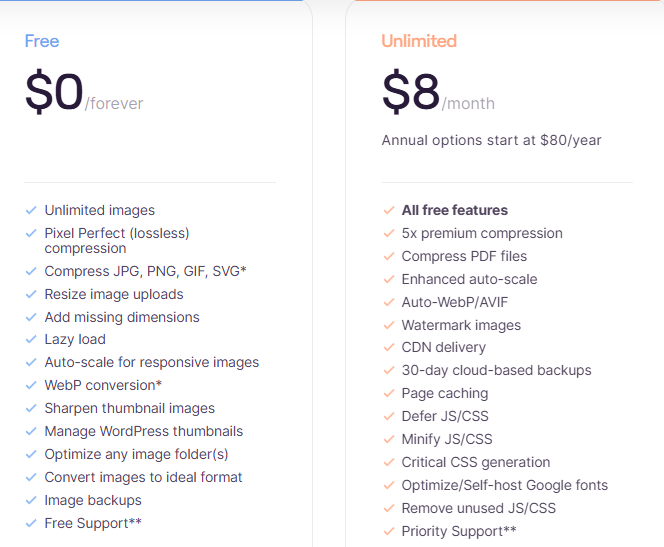
Check the latest EWWW Image Optimizer pricing and plans↗
EWWW Image Optimizer Free
The free version is suitable for users who want essential image optimization without a subscription. It includes unlimited image optimization, lossless compression, resizing, lazy loading, WebP conversion, and tools for managing images in WordPress.
EWWW Image Optimizer Premium
Premium plans add more advanced capabilities, including stronger compression, automatic WebP/AVIF delivery, CDN optimization, cloud backups, and additional website performance tools. Current premium plans start at $8/month for the Standard plan when billed monthly.
Which Version Should You Choose?
For a small blog or basic WordPress website, the free version may be enough. If you manage a larger website, upload many images, or want automated CDN delivery and advanced performance features, Premium is the better choice.
My recommendation: Start with the free version to see whether it meets your needs. If you need more advanced optimization and performance features, you can upgrade later.
8. EWWW Image Optimizer vs. Other WordPress Image Optimization Plugins
With several WordPress image optimization plugins available, choosing the right one can be difficult. EWWW Image Optimizer stands out for its broad optimization tools and WordPress integration, but Smush, Imagify, and ShortPixel are also popular alternatives. Comparing these options can help you find the plugin that best fits your website and performance goals.
| Feature | EWWW Image Optimizer | Smush | Imagify | ShortPixel |
|---|---|---|---|---|
| Image compression | ✅ | ✅ | ✅ | ✅ |
| WebP support | ✅ | ✅ | ✅ | ✅ |
| AVIF support | ✅ | ✅ | ✅ | ✅ |
| Bulk optimization | ✅ | ✅ | ✅ | ✅ |
| Image resizing | ✅ | ✅ | ✅ | ✅ |
| Free version | ✅ | ✅ | ✅ | ✅ |
| CDN options | ✅ | ✅ | ✅ | ✅ |
| Best for | Flexible optimization | Beginners | Easy compression | Advanced optimization |
9. Does EWWW Image Optimizer Improve WordPress SEO?
EWWW Image Optimizer can support WordPress SEO indirectly by improving website performance and the user experience. Optimized images can reduce file sizes, improve loading times, and help pages deliver images more efficiently. EWWW also supports features such as image resizing, lazy loading, WebP conversion, and responsive image scaling. (EWWW Image Optimizer)
1. Better Page Performance
Large images can increase page weight and slow down loading. EWWW Image Optimizer helps address common image-related performance issues by compressing images, properly sizing them, using modern formats, and deferring off-screen images. (EWWW IO)
2. Support for Core Web Vitals
Image optimization can also contribute to better Core Web Vitals, particularly when large or poorly sized images affect loading performance. EWWW provides tools that can help identify and optimize important images, including LCP images. (EWWW IO)
3. SEO Benefits Are Not Automatic
3. SEO Benefits Are Not Automatic
It is important to understand that EWWW Image Optimizer does not automatically improve Google rankings. Search performance depends on many factors, including content quality, technical SEO, backlinks, mobile usability, page experience, and overall website performance. Using an SEO plugin such as Rank Math SEO can help you manage important on-page and technical SEO elements alongside image optimization.
EWWW Image Optimizer can be a valuable part of a broader WordPress SEO strategy, particularly for websites with many images. By helping optimize image files and improve loading performance, it can support a faster and more user-friendly website, while Rank Math can help manage other essential SEO tasks.
10. EWWW Image Optimizer Pros and Cons
EWWW Image Optimizer offers a flexible way to compress and optimize images directly in WordPress, but it also has some limitations to consider. One of its main advantages is the free version, which provides unlimited image optimization using your server’s resources. The plugin also supports features such as WebP and AVIF conversion, image resizing, and bulk optimization. However, local optimization can use additional server resources, particularly when processing a large number of images on shared or low-powered hosting. Some advanced features, including stronger premium compression and cloud-based optimization, require a paid plan.
Pros
- Free unlimited image optimization
- WebP and AVIF support
- Automatic image resizing
- Bulk optimization for existing images
- Works directly inside WordPress
- Advanced options available with Premium
Cons
- Local optimization can use server resources
- Advanced compression features require Premium
- Some features may depend on your hosting environment
- The number of settings can feel overwhelming for beginners
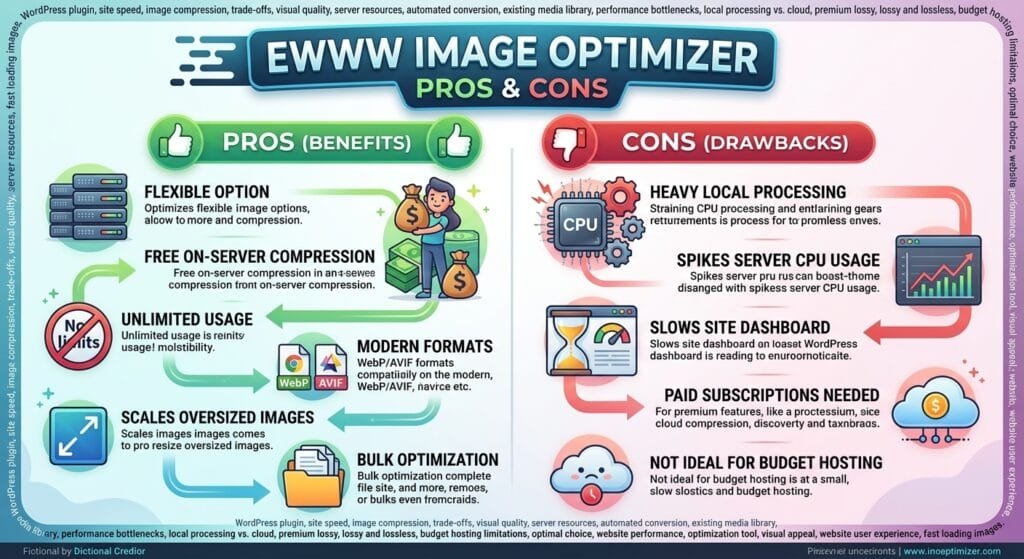
Overall, EWWW Image Optimizer is a strong option for users who want flexibility and control over image optimization. However, websites with limited hosting resources may benefit from a cloud-based optimization solution
11. Is EWWW Image Optimizer Easy to Use?
Yes, EWWW Image Optimizer is relatively easy to use, especially for beginners. After installing the plugin, users can access its optimization settings directly from the WordPress dashboard.
The plugin can automatically optimize new images when they are uploaded, while existing images can be optimized through its bulk optimization tools. Its settings also allow users to configure options such as compression, resizing, and modern image formats.
For beginners, the default settings can provide a simple starting point, while more experienced users can adjust advanced options based on their website’s needs.
Overall, EWWW Image Optimizer offers a good balance between ease of use and customization.
12. Who Should Use EWWW Image Optimizer?
EWWW Image Optimizer is a good choice for WordPress users who want an easy way to manage and optimize website images. It can be useful for different types of websites, from small blogs to image-heavy business sites.
Bloggers and Content Creators
If your website contains many photos, featured images, or graphics, EWWW Image Optimizer can help keep your media library organized and optimized.
Business Websites
Business websites can use EWWW to optimize images without manually processing every file before uploading it to WordPress.
Online Stores
WooCommerce stores often have many product images. Optimizing these images can help keep pages lighter and improve the overall shopping experience.
Beginners
EWWW Image Optimizer is suitable for beginners who want image optimization tools directly inside WordPress without needing advanced technical knowledge.
Developers and Advanced Users
Users who want more control can take advantage of advanced optimization settings, image formats, resizing, and performance options.
Overall, EWWW Image Optimizer is worth considering if your WordPress website uses many images and you want a flexible way to optimize them.
13. EWWW Image Optimizer Review 2026: Final Verdict
EWWW Image Optimizer is a practical WordPress plugin for optimizing images, with useful tools for compression, resizing, and modern image formats. It can help simplify image management and support better website performance.
Overall, it is a solid option for both beginners and experienced WordPress users. While it cannot solve every SEO or speed issue, it can be an important part of a broader optimization strategy.
If you’re looking for a simple way to manage and optimize your WordPress images, EWWW Image Optimizer is worth trying. You can learn more about the plugin and explore its available options here → EWWW Image Optimizer.
14. Frequently Asked Questions
Have questions about EWWW Image Optimizer? Here are quick answers to the most common questions about its features, pricing, image formats, performance, and WordPress compatibility.
1.Is EWWW Image Optimizer free?
Yes. EWWW Image Optimizer offers a free version with essential image optimization tools. Premium options are also available for users who need additional features and optimization capabilities.
2.Is EWWW Image Optimizer good for WordPress?
Yes. EWWW Image Optimizer is built for WordPress and allows users to manage image optimization directly from the WordPress dashboard. It can be used on blogs, business websites, portfolios, and online stores.
3.Is EWWW Image Optimizer good for beginners?
Yes. Beginners can use EWWW Image Optimizer without advanced image-editing knowledge. The plugin integrates with WordPress and provides settings that can be adjusted according to the user’s needs.
4.Can EWWW Image Optimizer optimize existing images?
Yes. The plugin can optimize images that are already stored in the WordPress Media Library. This is useful for websites with a large collection of older images.
5.Does EWWW Image Optimizer support WebP?
Yes. EWWW Image Optimizer supports WebP and can create WebP versions of compatible images. This provides another option for delivering optimized images on WordPress websites.
6.Does EWWW Image Optimizer support AVIF?
Yes. EWWW Image Optimizer supports AVIF in compatible optimization workflows. AVIF is a modern image format designed to provide efficient compression while maintaining good image quality.
7.Does EWWW Image Optimizer reduce image quality?
The plugin provides optimization options that allow users to balance image quality and file size. With the appropriate settings, images can be reduced in size while maintaining suitable visual quality.
8.Does EWWW Image Optimizer improve website speed?
It can help improve website performance by reducing image file sizes and the amount of data visitors need to download. However, image optimization is only one part of overall WordPress performance.
9.Does EWWW Image Optimizer improve SEO?
EWWW Image Optimizer can support SEO by helping improve image efficiency and page performance. However, it does not automatically improve Google rankings. Other factors, including content quality, technical SEO, and user experience, also matter.
10.Is EWWW Image Optimizer better than Smush?
Both plugins offer useful image optimization features, so the better choice depends on your website and requirements. EWWW Image Optimizer may be a good option for users who want detailed optimization controls and WordPress-based image management.
11.Does EWWW Image Optimizer automatically optimize images?
Yes, depending on the configuration, EWWW Image Optimizer can process images as they are uploaded to WordPress. This helps make image optimization part of the normal publishing workflow.
12.Is EWWW Image Optimizer worth using in 2026?
For WordPress websites that use many images, EWWW Image Optimizer is worth considering. Its image compression, resizing, modern format support, and WordPress integration make it a practical solution for managing website images.